.png)
Can I Automatically Scan All or Specific Mail Items?
🔄 Automated Mail Handling
PostScan Mail offers automation tools that let you control how incoming mail is handled as soon as it arrives in your inbox. You can set default actions to save time and reduce manual requests.
Auto Scan Feature
📥 You can enable Auto Scan from your mailbox settings. When turned on:
- All incoming mail items are automatically opened and scanned upon arrival.
- Scanned images are uploaded directly to your inbox for quick access.
Automations by Mail Type
⚙️ In addition to Auto Scan, you can create automation rules based on mail type, including:
- Scan: Automatically open and scan selected mail types
- Recycle: Automatically recycle non-essential mail
- Shred: Securely destroy selected mail types
- Transfer: Automatically assign mail to another authorized recipient on your account
These automations can be customized in your mailbox settings, allowing you to streamline mail handling and manage items exactly how you prefer.
If you need help setting up automations, our support team is happy to assist.
How Do I Set Up Automations?
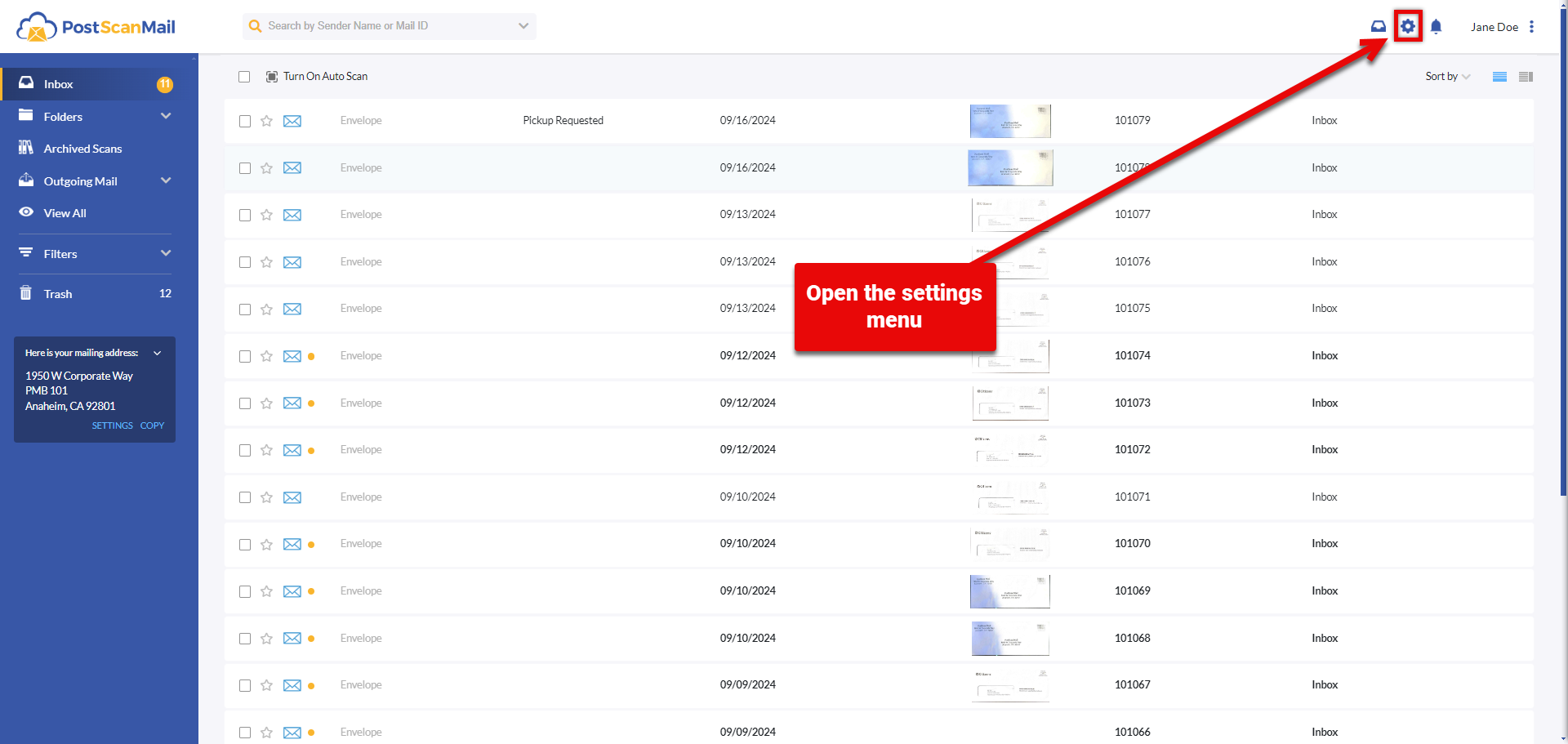
Step 1 - Open Settings
Select the gear icon to open the Settings menu.
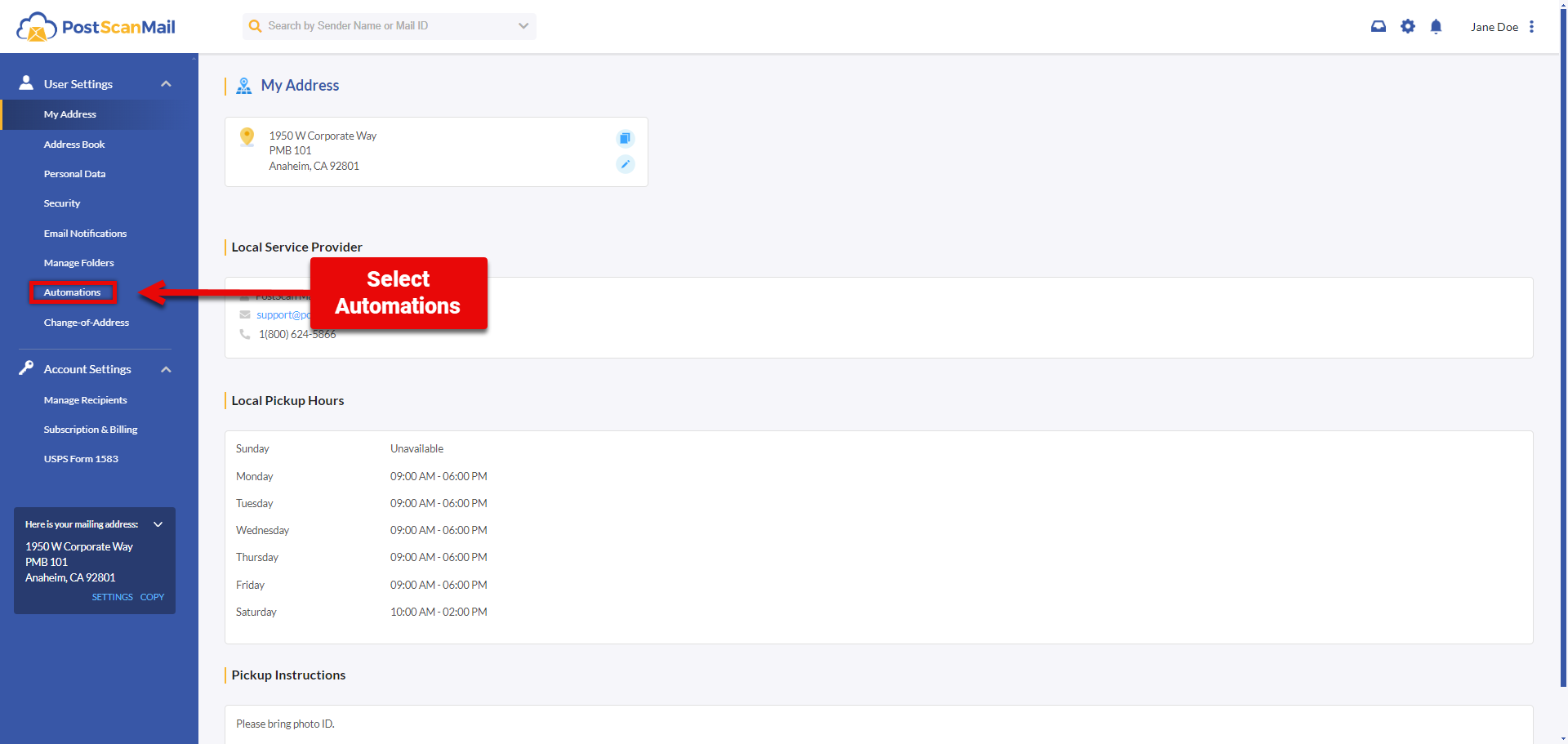
Step 2 - Go to Automations
From the Settings page, select Automations or Mail Automations.
Step 3 - Select the Add Automation button to create a new automation.
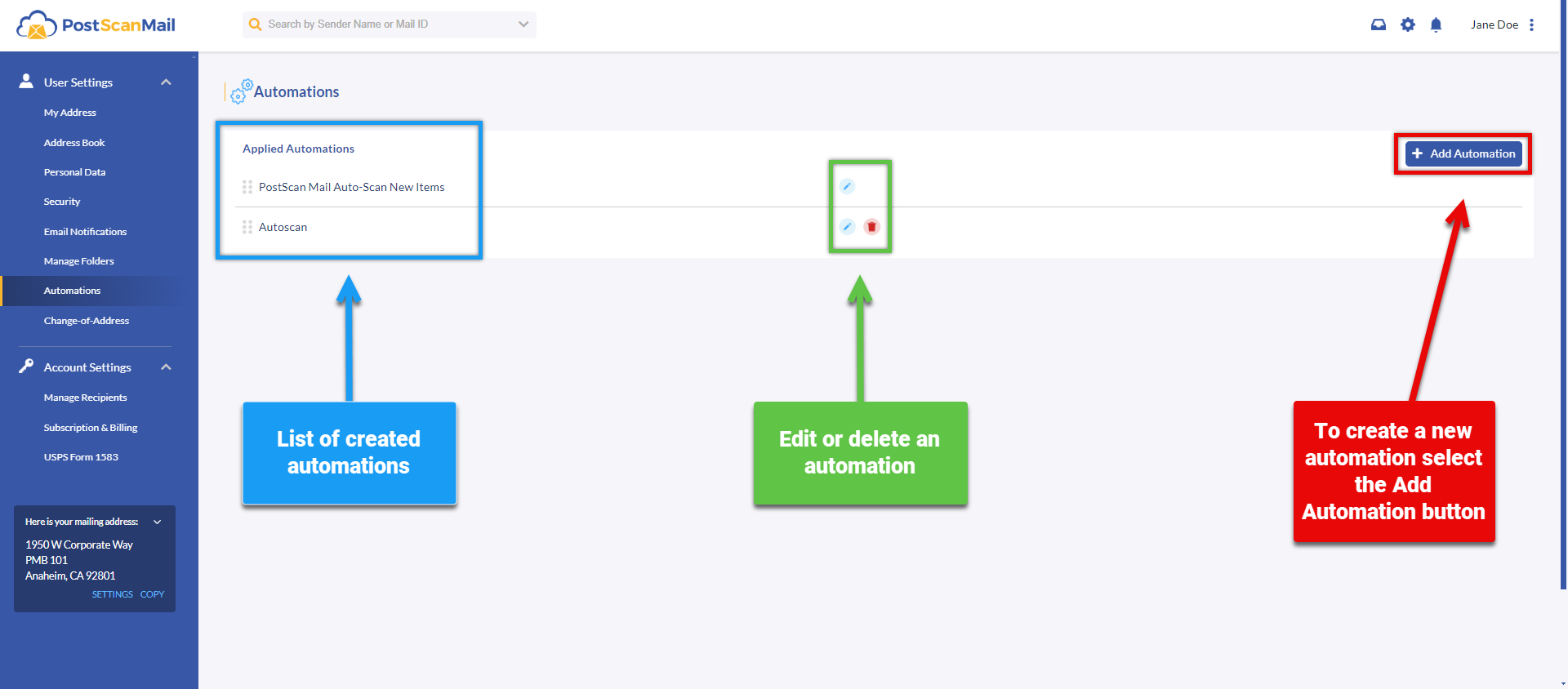
This screen will display the list of all created automations.
You can edit a previously created automation by selecting the Pencil Icon, or you can delete it by selecting the Trash Can Icon.
To create a new automation, select the + Add Automation.
Step 4 - Configure the automation by selecting the mail type and the action you want applied automatically.

You are able to name the automation, and choose which mail is effected.
Note: You must select New received mail items, in order to automate Recycle or Shred requests.
You can choose if the automation applies to all senders or specific senders. You can also select which mail types the automation is applied to.
You can select what request you would like to automate.
Select the Save button to save and apply the automation, select Cancel to cancel it.